windows 10 22h2

remembering-what-windows-10-did-right—and-how-it-made-modern-windows-more-annoying

Remembering what Windows 10 did right—and how it made modern Windows more annoying


Remembering Windows 10’s rollout can help diagnose what ails Windows 11.

If you’ve been following our coverage for the last few years, you’ll already know that 2025 is the year that Windows 10 died. Technically.

“Died,” because Microsoft’s formal end-of-support date came and went on October 14, as the company had been saying for years. “Technically,” because it’s trivial for home users to get another free year of security updates with a few minutes of effort, and schools and businesses can get an additional two years of updates on top of that, and because load-bearing system apps like Edge and Windows Defender will keep getting updates through at least 2028 regardless.

But 2025 was undoubtedly a tipping point for the so-called “last version of Windows.” StatCounter data says Windows 11 has overtaken Windows 10 as the most-used version of Windows both in the US (February 2025) and worldwide (July 2025). Its market share slid from just over 44 percent to just under 31 percent in the Steam Hardware Survey. And now that Microsoft’s support for the OS has formally ended, games, apps, and drivers are already beginning the gradual process of ending or scaling back official Windows 10 support.

Windows 10 is generally thought of as one of the “good” versions of Windows, and it was extremely popular in its heyday: the most widely used version of Windows since XP. That’s true even though many of the annoying things that people complain about in Windows 11 started during the Windows 10 era. Now that it’s time to write Windows 10’s epitaph, it’s worth examining what Microsoft got right with Windows 10, how it laid the groundwork for many of the things people dislike about Windows 11, and how Microsoft has made all of those problems worse in the years since Windows 11 first launched.

Windows 10 did a lot of things right

The Start menu in the first release of Windows 10. Windows 10 got a lot of credit for not being Windows 8 and for rolling back its most visible and polarizing changes.

Like Windows 7, Windows 10’s primary job was to not be its predecessor. Windows 8 brought plenty of solid under-the-hood improvements over Windows 7, but it came with a polarizing full-screen Start menu and a touchscreen-centric user interface that was an awkward fit for traditional desktops and laptops.

And the biggest thing it did to differentiate itself from Windows 8 was restore a version of the traditional Start menu, altered from its Windows XP or Windows 7-era iterations but familiar enough not to put people off.

Windows 10 also adopted a bunch of other things that people seemed to like about their smartphones—it initially rolled out as a free upgrade to anyone already running Windows 7 or Windows 8, and it ran on virtually all the same hardware as those older versions. It was updated on a continuous, predictable cadence that allowed Microsoft to add features more quickly. Microsoft even expanded its public beta program, giving enthusiasts and developers an opportunity to see what was coming and provide feedback before new features were rolled out to everybody.

Windows 10 also hit during a time of change at Microsoft. Current CEO Satya Nadella was just taking over from Steve Ballmer, and as part of that pivot, the company was also doing things like making its Office apps work on iOS and Android and abandoning its struggling, proprietary browser engine for Edge. Nadella’s Microsoft wanted you to be using Microsoft products (and ideally paying for a subscription to do so), but it seemed more willing to meet people where they were rather than forcing them to change their behavior.

That shift continued to benefit users throughout the first few years of Windows 10’s life. Developers benefited from the introduction and continuous improvement of the Windows Subsystem for Linux, a way to run Linux and many of its apps and tools directly on top of Windows. Microsoft eventually threw out its struggling in-house browser engine for a new version of the Edge browser built on Chromium—we can debate whether Chromium’s supremacy is a good thing for an open, standard-compliant Internet, but switching to a more compatible rendering engine and an established extension ecosystem was absolutely the more user-friendly choice. Both projects also signaled Microsoft’s growing engagement with and contributions to open-source projects, something that would have been hard to imagine during the company’s closed-off ’90s and ’00s.

Windows 10 wasn’t perfect; these examples of what it did right are cherry-picked. But part of the operating system’s reputation comes from the fact that it was originally developed as a response to real complaints and rolled out in a way that tried to make its changes and improvements as widely accessible as possible.

But Windows 10 laid the groundwork for Windows 11’s problems

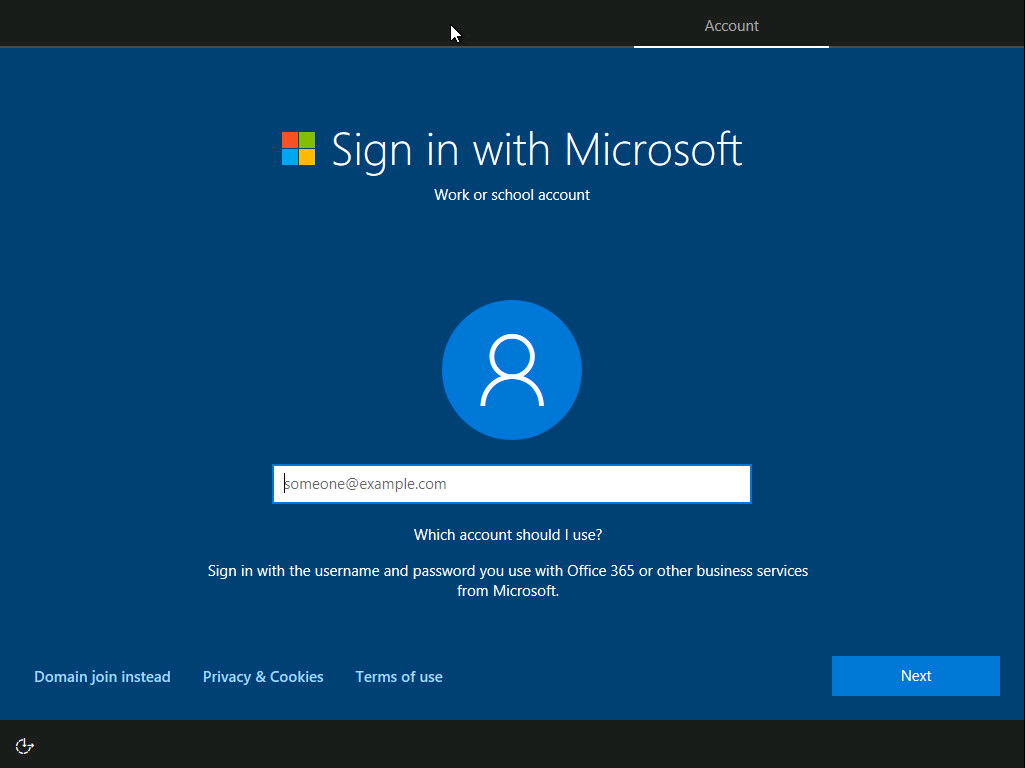
Windows 10 asked you to sign in with a Microsoft account, but for most of the operating system’s life, it was easy to skip this using visible buttons in the UI. Windows 10 began locking this down in later versions; that has continued in Windows 11, but it didn’t originate there. Credit: BTNHD

As many things as Windows 10 did relatively well, most of the things people claim to find objectionable about Windows 11 actually started happening during the Windows 10 era.

Right out of the gate, for example, Windows 10 wanted to collect more information about how people were using the operating system—ostensibly in the name of either helping Microsoft improve the OS or helping “personalize” its ads and recommendations. And the transition to the “software-as-a-service” approach helped Windows move faster but also broke things, over and over again—these kinds of bugs have persisted on and off into the Windows 11 era despite Microsoft’s public beta programs.

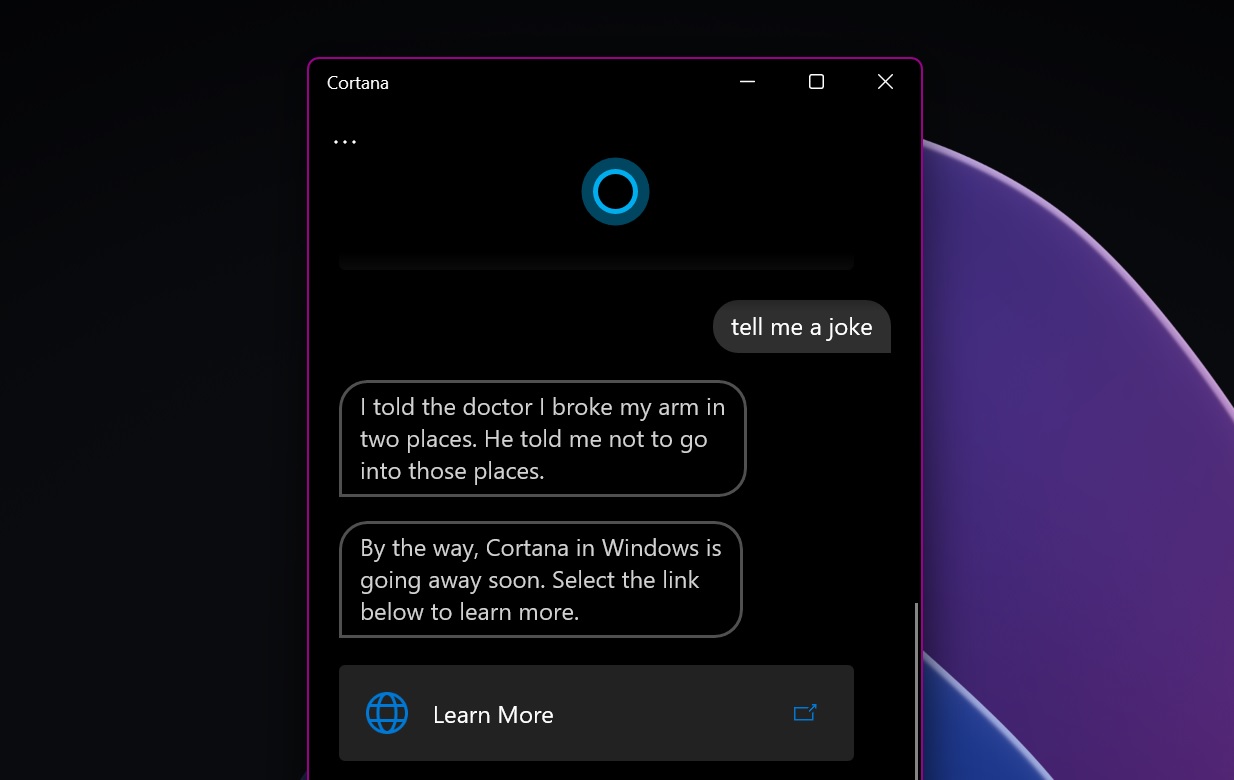
Windows 10 could also get pushy about other Microsoft products. Multiple technologies, like the original Edge and Cortana, were introduced, pushed on users, and failed. The annoying news and weather widget on the taskbar was a late addition to Windows 10; advertisements and news articles could clutter up its lock screen. Icons for third-party apps from the Microsoft Store, many of them low-rent, ad-supported time-waster games, were added to the Start menu without user consent. Some users of older Windows versions even objected to the way that the free Windows 10 upgrade was offered—the install files would download themselves automatically, and it could be difficult to make the notifications go away.

Even the mandatory Microsoft Account sign-in, one of the most frequently complained-about aspects of Windows 11, was a Windows 10 innovation—it was easier to circumvent than it is now, and it was just for the Home edition of the software, but in retrospect, it was clearly a step down the road that Windows 11 is currently traveling.

Windows 11 did make things worse, though

But many of Windows 11’s annoyances are new ones. And the big problem is that these annoyances have been stacked on top of the annoying things that Windows 10 was already doing, gradually accumulating to make the new PC setup process go from “lightly” to “supremely” irritating.

The Microsoft Account sign-in requirement is ground zero for a lot of this since signing in with an account unlocks a litany of extra ads for Microsoft 365, Game Pass, and other services you may or may not need or want. Connecting to the Internet and signing in became a requirement for new installations of both the Home and the Pro versions of Windows 11 starting with version 22H2, and while workarounds existed then and continue to exist now, you have to know about them beforehand or look them up yourself—the OS doesn’t offer you an option to skip. Microsoft will also apparently be closing some of these loopholes in future updates, making circumvention even more difficult.

And if getting through those screens when setting up a new PC wasn’t annoying enough, Windows 11 will regularly remind you about other Microsoft services again through its Second Chance Out-Of-Box Experience screen, or SCOOBE. This on-by-default “feature” has offered to help me “finish setting up” Windows 11 installations that are years old and quite thoroughly set up. It can be turned off via a buried checkbox in the Notifications settings, but removing it or making it simpler to permanently dismiss from the SCOOBE screen itself would be the more user-friendly change, especially since Microsoft already bombards users with “helpful reminders” about many of these same services via system notifications.

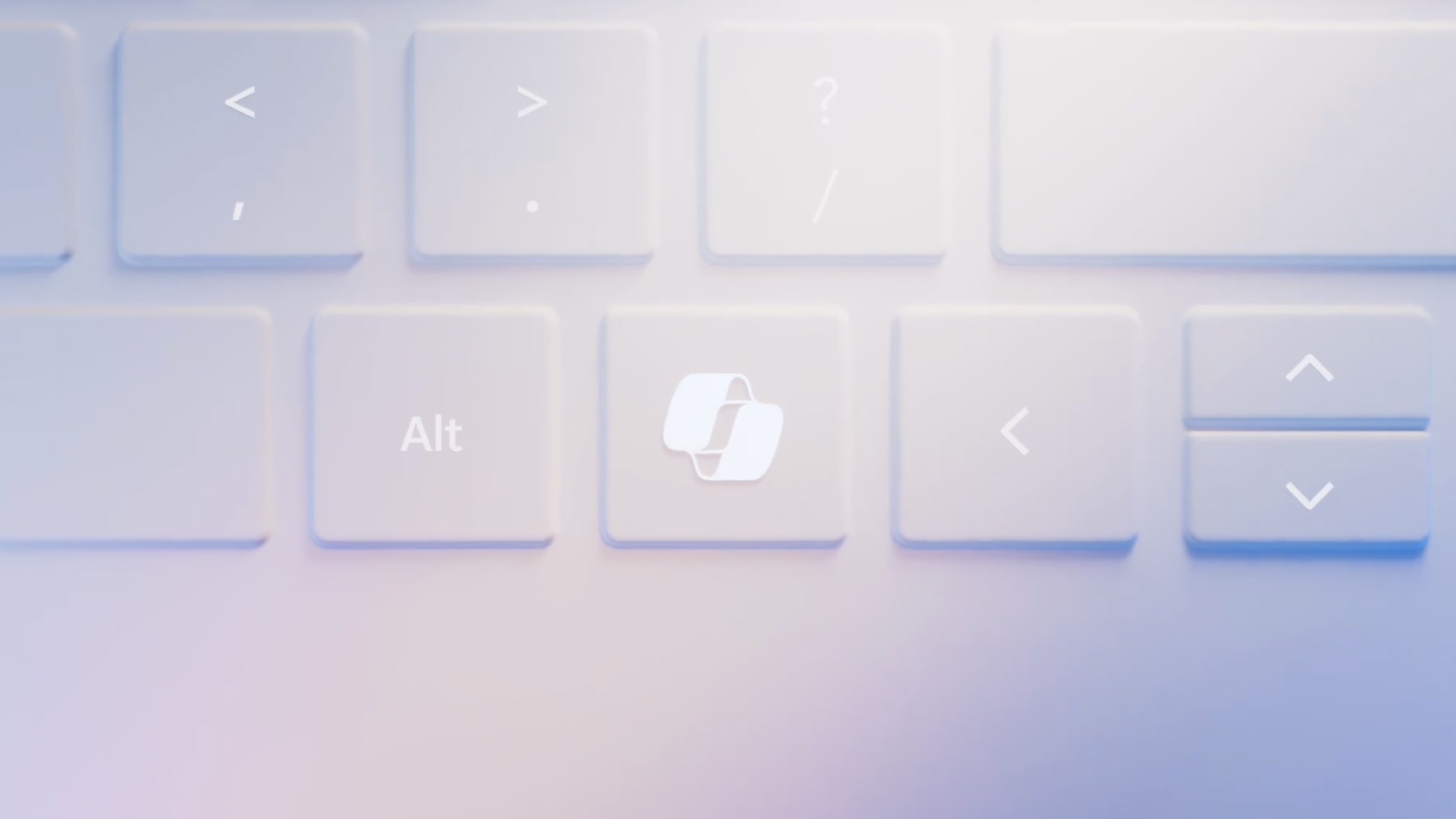
Microsoft’s all-consuming pivot to generative AI also deserves blame. Microsoft’s Copilot push hasn’t stopped with the built-in app that gets a position of honor on the default taskbar—an app whose appearance and functionality have completely changed multiple times in the last couple of years as Microsoft has updated it. Microsoft changed the default Windows PC keyboard layout for the first time in 30 years to accommodate Copilot, and Copilot-branded features have landed in every Windows app from Word to Paint to Edge to Notepad. Sometimes these features can be uninstalled or turned off; sometimes they can’t.

It’s not just that Microsoft is squeezing generative AI into every possible nook and cranny in Windows; it’s that there seems to be no feature too intrusive or risky to make the cutoff. Microsoft nearly rolled out a catastrophically insecure version of Recall, a feature for some newer PCs that takes screenshots of your activity and records it for later reference; Microsoft gave its security an overhaul after a massive outcry from users, media, and security researchers, but Recall still rolled out.

The so-called “agentic” AI features that Microsoft is currently testing in Windows come with their own documented security and privacy risks, but their inclusion in Windows is essentially a foregone conclusion because Microsoft executives are constantly talking about the need to develop an “agentic OS.” There’s a fine line between introducing new software features and forcing people to use them, and I find that Microsoft’s pushiness around Windows 11’s AI additions falls on the wrong side of that line for me pretty much every single time.

Finally, while Windows 10 ran on anything that could run Windows 7 or 8, Windows 11 came with new system requirements that excluded many existing, functional PCs. The operating system can be installed unofficially on PCs that are several years older than the official cutoff, but only if you’re comfortable with the risks and you know how to get around the system requirements check.

Using people’s PCs as billboards to sell them new PCs feels tacky at best. Credit: Kyle Orland

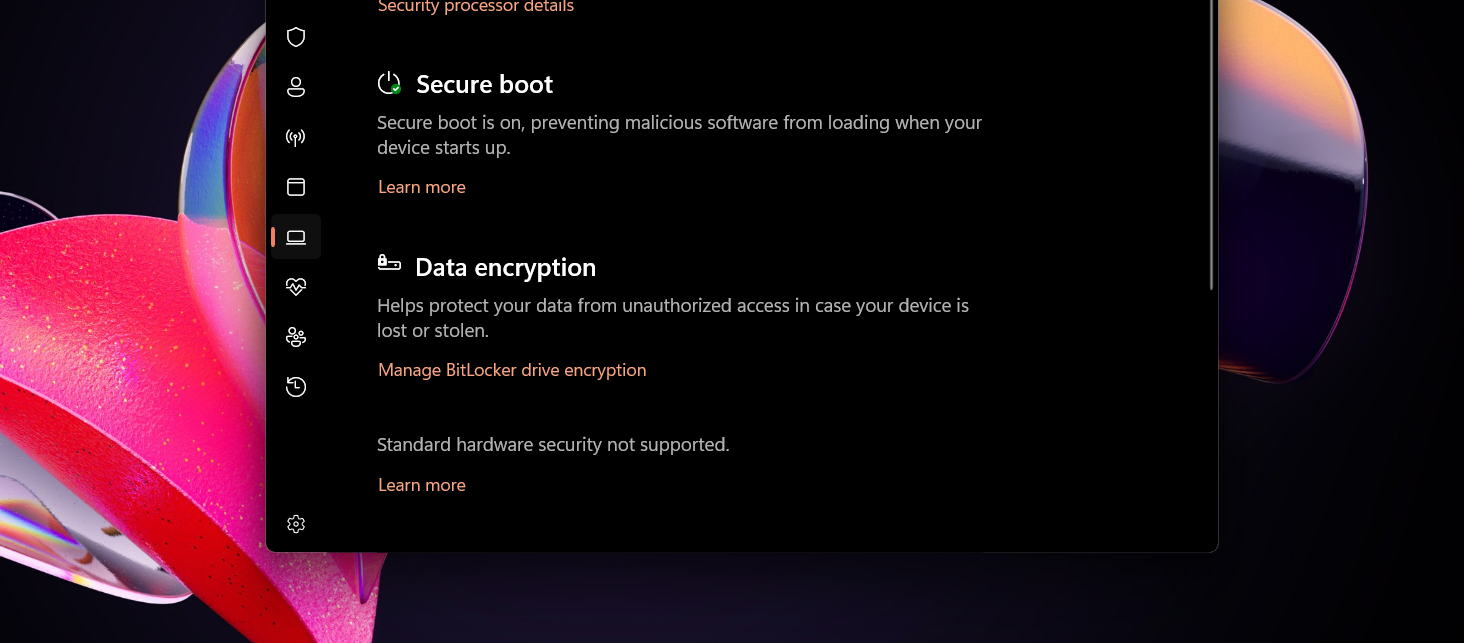
I find the heightened requirements—implemented to improve security, according to Microsoft—to be more or less defensible. TPM modules enable seamless disk encryption, Secure Boot protects from threats that are otherwise invisible and hard to detect, and CPU makers like Intel and AMD only commit to supporting older processors with firmware-level security patches for so long, which is important in the era of hardware-level security exploits.

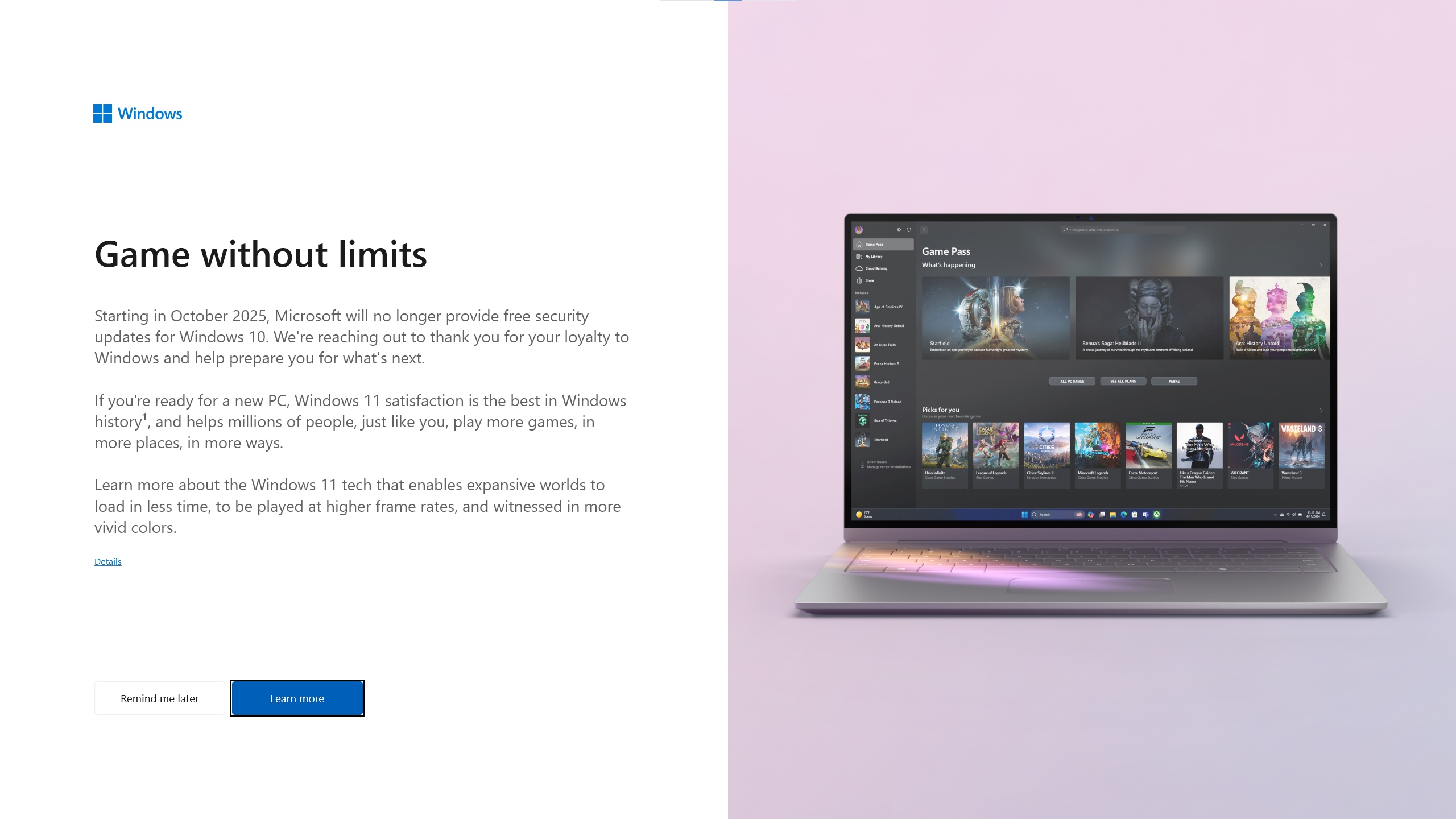
But the requirements don’t feel like something Microsoft has imposed to protect users from threats; they feel like something Microsoft is doing in order to upsell you to a new PC. Microsoft creates that impression when it shows Windows 10 users full-screen ads for new Copilot+ PCs, even when their systems are capable of upgrading to the new operating system directly. People are already primed to believe in “planned obsolescence,” the idea that the things they buy are designed to slow down or fail just in time to force them to buy new things; pushing people to throw out functioning PCs with full-screen ads does nothing to dispel this notion.

Windows 11 could still be great

I still believe that Windows 11 has good bones. Install the Enterprise version of the operating system and you’ll get a version with much less extra cruft on top of it, a version made to avoid alienating the businesses that pay good money to install Windows across large fleets of PCs. Microsoft has made huge strides in getting its operating system to run on Arm-based PCs. The Windows Subsystem for Linux is better than it’s ever been. I’m intrigued by the company’s efforts to make Windows a better operating system for gaming handhelds, Microsoft’s belated answer to Valve’s Steam Deck and SteamOS.

But as someone with firsthand experience of every era of Windows from 3.1 onward, I can say I’ve never felt as frustrated with the operating system as I have during Windows 11’s Copilot era. The operating system can be tamed with effort. But the taming has become an integral part of the new PC setup process for me, just as essential as creating the USB installer and downloading drivers and third-party apps. It’s something my PC needs to have done to it before it feels ready to use.

Windows 10 was far from perfect. But as we mark the first stage of its multi-year passing, it’s worth remembering what it did well and why people were willing to install it in droves. I’d like to see Microsoft recommit to a quieter, cleaner version of Windows that is more willing to get out of the way and just let people use their computers the way they want, the same way the company has tried to recommit to security following a string of embarrassing breaches. I don’t have much hope that this will happen, but some genuine effort could go a long way toward convincing Windows 10-using holdouts that the new OS actually isn’t all that bad.

Photo of Andrew Cunningham

Andrew is a Senior Technology Reporter at Ars Technica, with a focus on consumer tech including computer hardware and in-depth reviews of operating systems like Windows and macOS. Andrew lives in Philadelphia and co-hosts a weekly book podcast called Overdue.

Remembering what Windows 10 did right—and how it made modern Windows more annoying Read More »

windows-10-support-“ends”-today,-but-it’s-just-the-first-of-many-deaths

Windows 10 support “ends” today, but it’s just the first of many deaths

Today is the official end-of-support date for Microsoft’s Windows 10. That doesn’t mean these PCs will suddenly stop working, but if you don’t take action, it does mean your PC has received its last regular security patches and that Microsoft is washing its hands of technical support.

This end-of-support date comes about a decade after the initial release of Windows 10, which is typical for most Windows versions. But it comes just four years after Windows 10 was replaced by Windows 11, a version with stricter system requirements that left many older-but-still-functional PCs with no officially supported upgrade path. As a result, Windows 10 still runs on roughly 40 percent of the world’s Windows PCs (or around a third of US-based PCs), according to StatCounter data.

But this end-of-support date also isn’t set in stone. Home users with Windows 10 PCs can enroll in Microsoft’s Extended Security Updates (ESU) program, which extends the support timeline by another year. We’ve published directions for how to do this here—while you do need one of the Microsoft accounts that the company is always pushing, it’s relatively trivial to enroll in the ESU program for free.

Home users can only get a one-year stay of execution for Windows 10, but IT administrators and other institutions with fleets of Windows 10 PCs can also pay for up to three years of ESUs, which is also roughly the amount of time users can expect new Microsoft Defender antivirus updates and updates for core apps like Microsoft Edge.

Obviously, Microsoft’s preferred upgrade path would be either an upgrade to Windows 11 for PCs that meet the requirements or an upgrade to a new PC that does support Windows 11. It’s also still possible, at least for now, to install and run Windows 11 on unsupported PCs. Your day-to-day experience will generally be pretty good, though installing Microsoft’s major yearly updates (like the upcoming Windows 11 25H2 update) can be a bit of a pain. For new Windows 11 users, we’ll publish an update to our Windows 11 cleanup guide soon—these steps help to minimize the upsells and annoyances that Microsoft has baked into its latest OS.

Windows 10 support “ends” today, but it’s just the first of many deaths Read More »

steam-will-wind-down-support-for-32-bit-windows-as-that-version-of-windows-fades

Steam will wind down support for 32-bit Windows as that version of Windows fades

Though the 32-bit versions of Windows were widely used from the mid-90s all the way through to the early 2010s, this change is coming so late that it should only actually affect a statistically insignificant number of Steam users. Valve already pulled Steam support for all versions of Windows 7 and Windows 8 in January 2024, and 2021’s Windows 11 was the first in decades not to ship a 32-bit version. That leaves only the 32-bit version of Windows 10, which is old enough that it will stop getting security updates in either October 2025 or October 2026, depending on how you count it.

According to Steam Hardware Survey data from August, usage of the 32-bit version of Windows 10 (and any other 32-bit version of Windows) is so small that it’s lumped in with “other” on the page that tracks Windows version usage. All “other” versions of Windows combined represent roughly 0.05 percent of all Steam users. The 64-bit version of Windows 10 still runs on just over a third of all Steam-using Windows PCs, while the 64-bit version of Windows 11 accounts for just under two-thirds.

The change to the Steam client shouldn’t have any effects on game availability or compatibility. Any older 32-bit games that you can currently run in 64-bit versions of Windows will continue to work fine because, unlike modern macOS versions, new 64-bit versions of Windows still maintain compatibility with most 32-bit apps.

Steam will wind down support for 32-bit Windows as that version of Windows fades Read More »

having-recovery-and/or-ssd-problems-after-recent-windows-updates?-you’re-not-alone.

Having recovery and/or SSD problems after recent Windows updates? You’re not alone.

The other issue some users have been experiencing is potentially more serious, but also harder to track down. Tom’s Hardware has a summary of the problem: At some point after installing update KB5063878 on Windows 11 24H2, some users began noticing issues with large file transfers on some SSDs. When installing a large update for Cyberpunk 2077, a large game that requires dozens of gigabytes of storage, Windows abruptly stopped seeing the SSD that the game was installed on.

The issues are apparently more pronounced on disks that are more than 60 percent full, when transferring at least 50GB of data. Most of the SSDs were visible again after a system reboot, though one—a 2TB Western Digital SA510 drive—didn’t come back after a reboot.

These issues could be specific to this user’s configuration, and the culprit may not be the Windows update. Microsoft has yet to add the SSD problem to its list of known issues with Windows, but the company confirmed to Ars that it was studying the complaints.

“We’re aware of these reports and are investigating with our partners,” a Microsoft spokesperson told Ars.

SSD controller manufacturer Phison told Tom’s Hardware that it was also looking into the problem.

Having recovery and/or SSD problems after recent Windows updates? You’re not alone. Read More »

office-problems-on-windows-10?-microsoft’s-response-will-soon-be-“upgrade-to-11.”

Office problems on Windows 10? Microsoft’s response will soon be “upgrade to 11.”

Microsoft’s advertised end-of-support date for Windows 10 is October 14, 2025. But in reality, the company will gradually wind down support for the enduring popular operating system over the next three years. Microsoft would really like you to upgrade to Windows 11, especially if it also means upgrading to a new PC, but it also doesn’t want to leave hundreds of millions of home and business PCs totally unprotected.

Those competing goals have led to lots of announcements and re-announcements and clarifications about updates for both Windows 10 itself and the Office/Microsoft 365 productivity apps that many Windows users run on their PCs.

Today’s addition to the pile comes via The Verge, which noticed an update to a support document that outlined when Windows 10 PCs would stop receiving new features for the continuously updated Microsoft 365 apps. Most home users will stop getting new features in August 2026, while business users running the Enterprise versions can expect to stop seeing new features in either October 2026 or January 2027, depending on the product they’re using.

Microsoft had previously committed to supporting its Office apps through October 2028—both the Microsoft 365 versions and perpetually licensed versions like Office 2021 and Office 2024 that don’t get continuous feature updates. That timeline isn’t changing, but it will apparently only cover security and bug-fixing updates rather than updates that add new features.

And while the apps will still be getting updates, Microsoft’s support document makes it clear that users won’t always be able to get fixes for bugs that are unique to Windows 10. If an Office issue exists solely on Windows 10 but not on Windows 11, the official guidance from Microsoft support is that users should upgrade to Windows 11; any support for Windows 10 will be limited to “troubleshooting assistance only,” and “technical workarounds might be limited or unavailable.”

Office problems on Windows 10? Microsoft’s response will soon be “upgrade to 11.” Read More »

microsoft-extends-free-windows-10-security-updates-into-2026,-with-strings-attached

Microsoft extends free Windows 10 security updates into 2026, with strings attached

Freeupdates

It’s worth noting that both the Windows Backup and Microsoft Rewards methods for getting these updates require the use of a Microsoft Account, something Microsoft has been pushing with slowly increasing intensity in Windows 11. Windows 10 pushed Microsoft Account usage in various ways, too, but it was generally easier to create and sign in with a local account; for those people, the “free” update offer seems like another effort from Microsoft to bring them into the fold.

The Windows Backup option seems intended to ease the migration to a new Windows 11 PC when the time comes. The company may be offering a short reprieve for Windows 10 users, but the goal is still to shift them to Windows 11 eventually.

“To help make your move to a Windows 11 PC, as simple and secure as possible, we recommend using Windows Backup—built right into Windows 10,” writes Microsoft Consumer Chief Marketing Officer Yusuf Medhi in Microsoft’s blog post. “It’s an easy way to help you safely and securely transfer your data, personal files, and most settings and applications, so everything’s ready for you the moment you sign in.”

People with existing Microsoft Accounts who don’t want to use Windows Backup may already have the 1,000 Microsoft Rewards points you would need to enroll in the ESU program; my Microsoft account has 3,411 points attached to it for some reason despite an 18-month expiration window and even though I’ve never taken any intentional steps toward earning any. Users creating a new account for the first time can accumulate that many points fairly trivially over the course of a few days, including by downloading the Bing app and doing various kinds of Bing searches.

We have asked Microsoft several logistical questions about the ESU program enrollment. If you reset or totally reinstall Windows 10 on the same PC, is that PC automatically enrolled in the ESU program, or will users need to enroll again? If you temporarily enable Windows Backup to access the ESU program but then stop using Windows Backup, will your PC keep receiving the updates? And if you have multiple PCs, do you need to enable Windows Backup or spend the 1,000 Rewards points on each of them individually to join the ESU program? We’ll update this article if we get answers to any or all of these questions.

Microsoft extends free Windows 10 security updates into 2026, with strings attached Read More »

what-i-learned-from-3-years-of-running-windows-11-on-“unsupported”-pcs

What I learned from 3 years of running Windows 11 on “unsupported” PCs


where we’re going, we don’t need support

When your old PC goes over the Windows 10 update cliff, can Windows 11 save it?

Credit: Andrew Cunningham

Credit: Andrew Cunningham

The Windows 10 update cliff is coming in October 2025. We’ve explained why that’s a big deal, and we have a comprehensive guide to updating to Windows 11 (recently updated to account for changes in Windows 11 24H2) so you can keep getting security updates, whether you’re on an officially supported PC or not.

But this is more than just a theoretical exercise; I’ve been using Windows 11 on some kind of “unsupported” system practically since it launched to stay abreast of what the experience is actually like and to keep tabs on whether Microsoft would make good on its threats to pull support from these systems at any time.

Now that we’re three years in, and since I’ve been using Windows 11 24H2 on a 2012-era desktop and laptop as my primary work machines on and off for a few months now, I can paint a pretty complete picture of what Windows 11 is like on these PCs. As the Windows 10 update cliff approaches, it’s worth asking: Is running “unsupported” Windows 11 a good way to keep an older but still functional machine running, especially for non-technical users?

My hardware

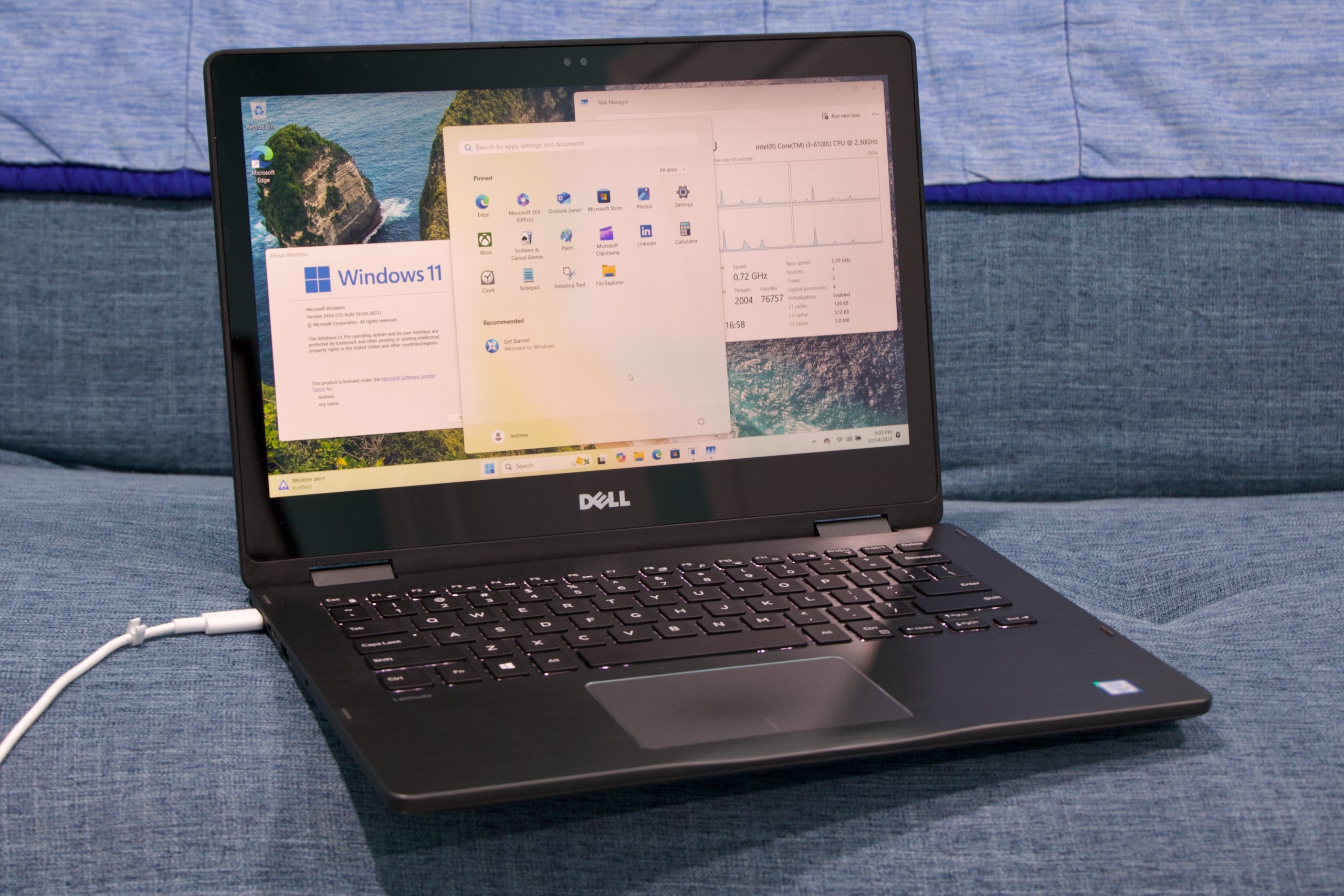
I’ve run Windows 11 on a fair amount of old hardware, including PCs as old as a late XP-era Core 2 Duo Dell Inspiron desktop. For the first couple of years, I ran it most commonly on an old Dell XPS 13 9333 with a Core i5-4250U and 8GB of RAM and a Dell Latitude 3379 2-in-1 that just barely falls short of the official requirements (both systems are also pressed into service for ChromeOS Flex testing periodically).

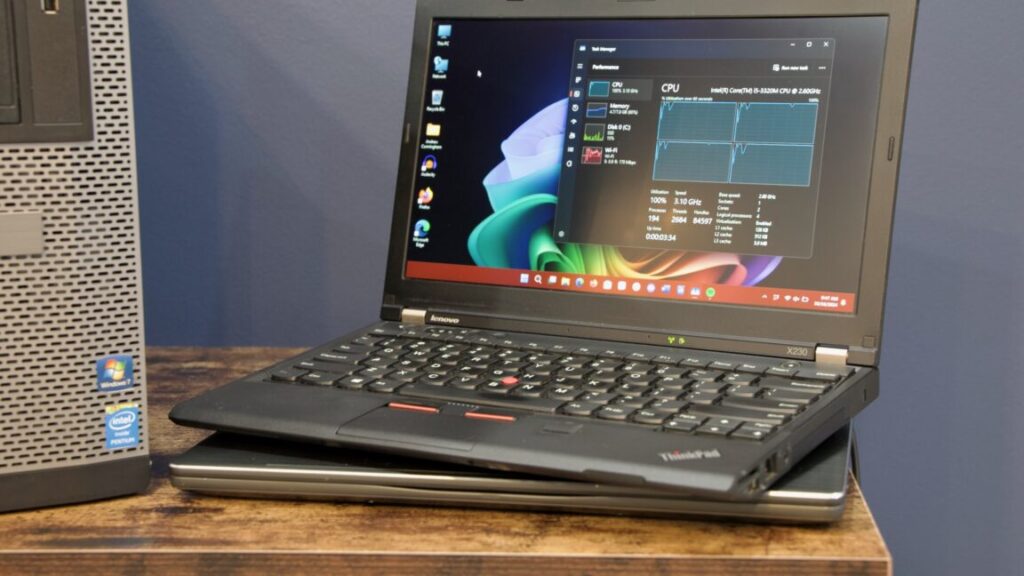
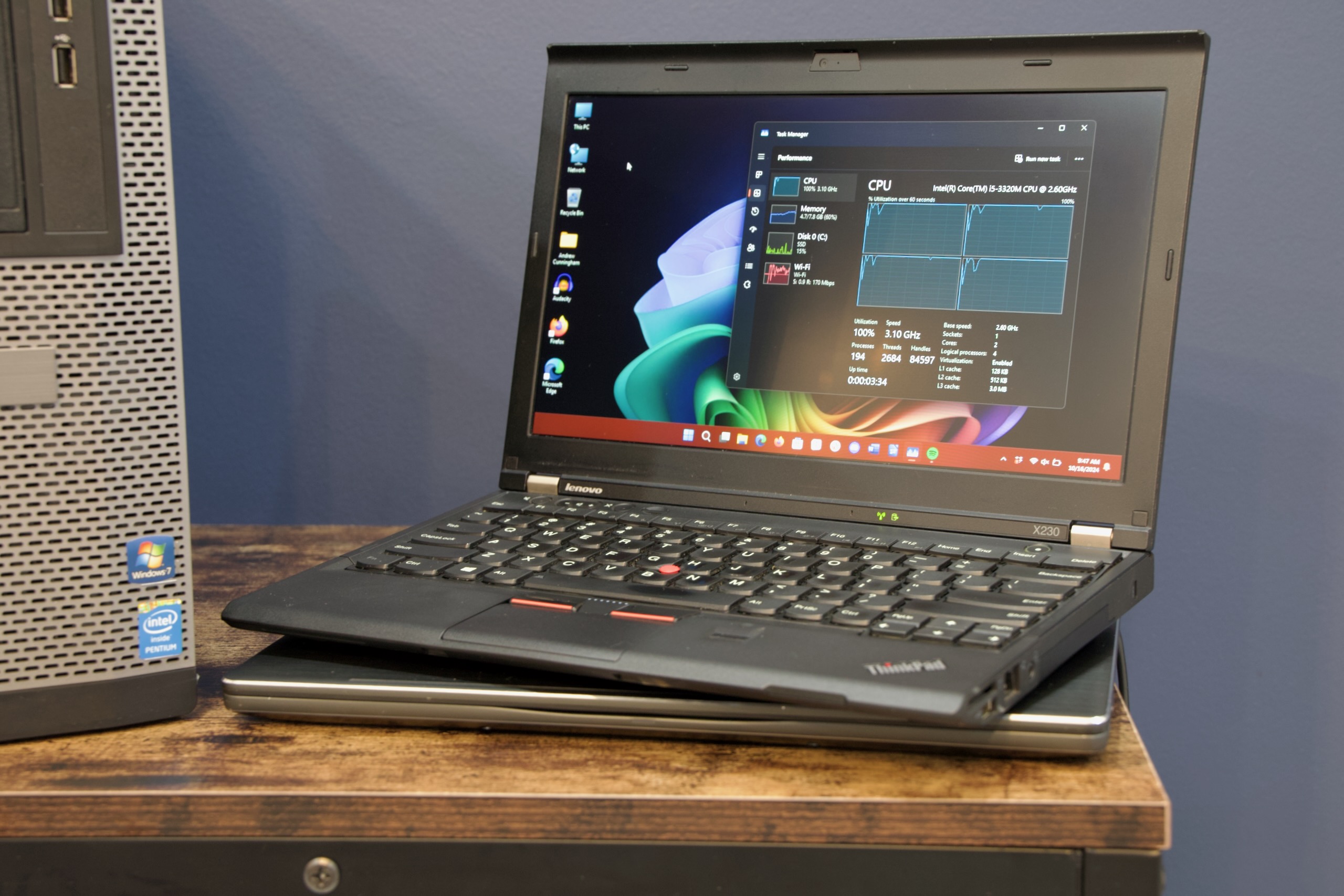
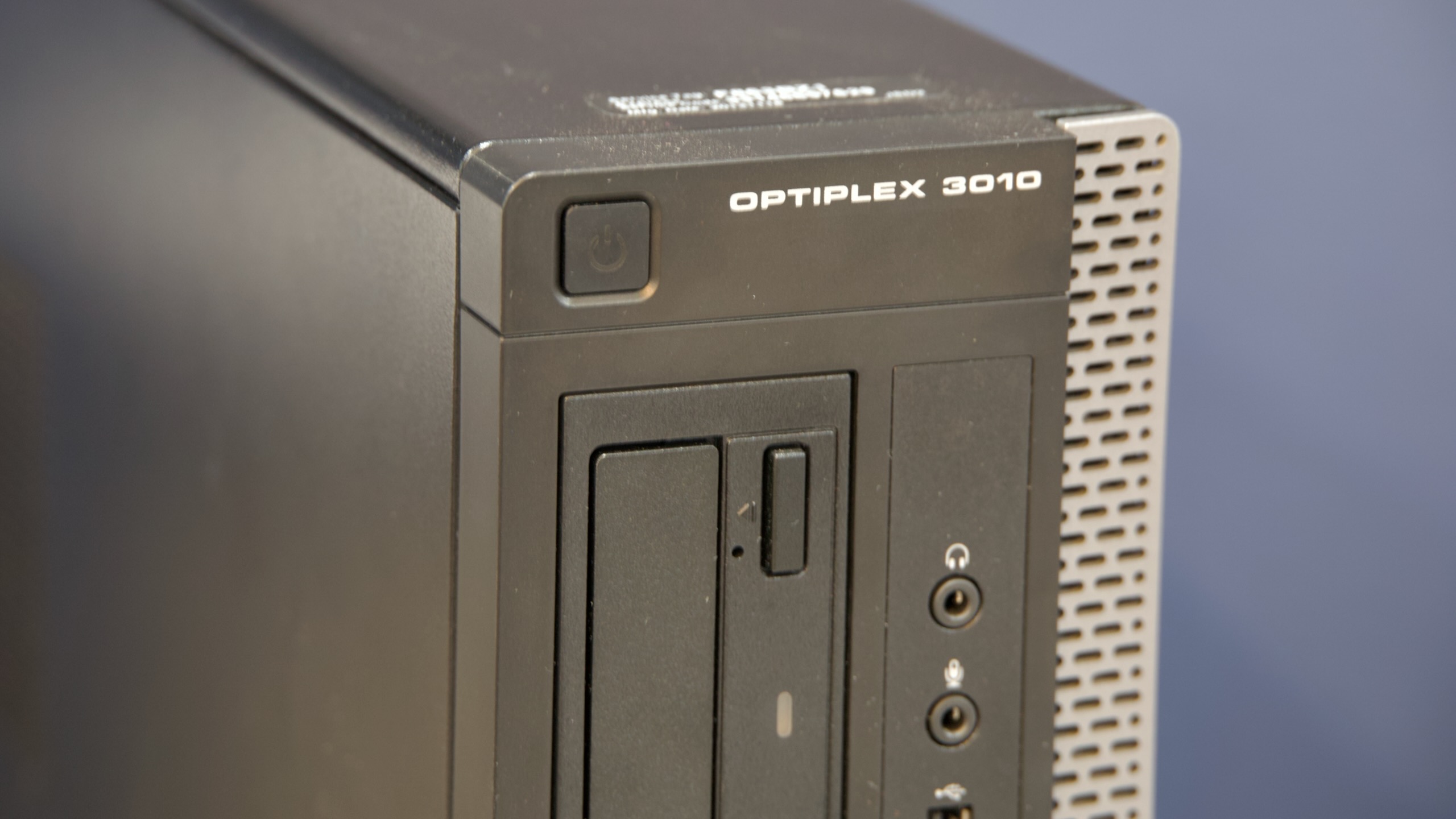
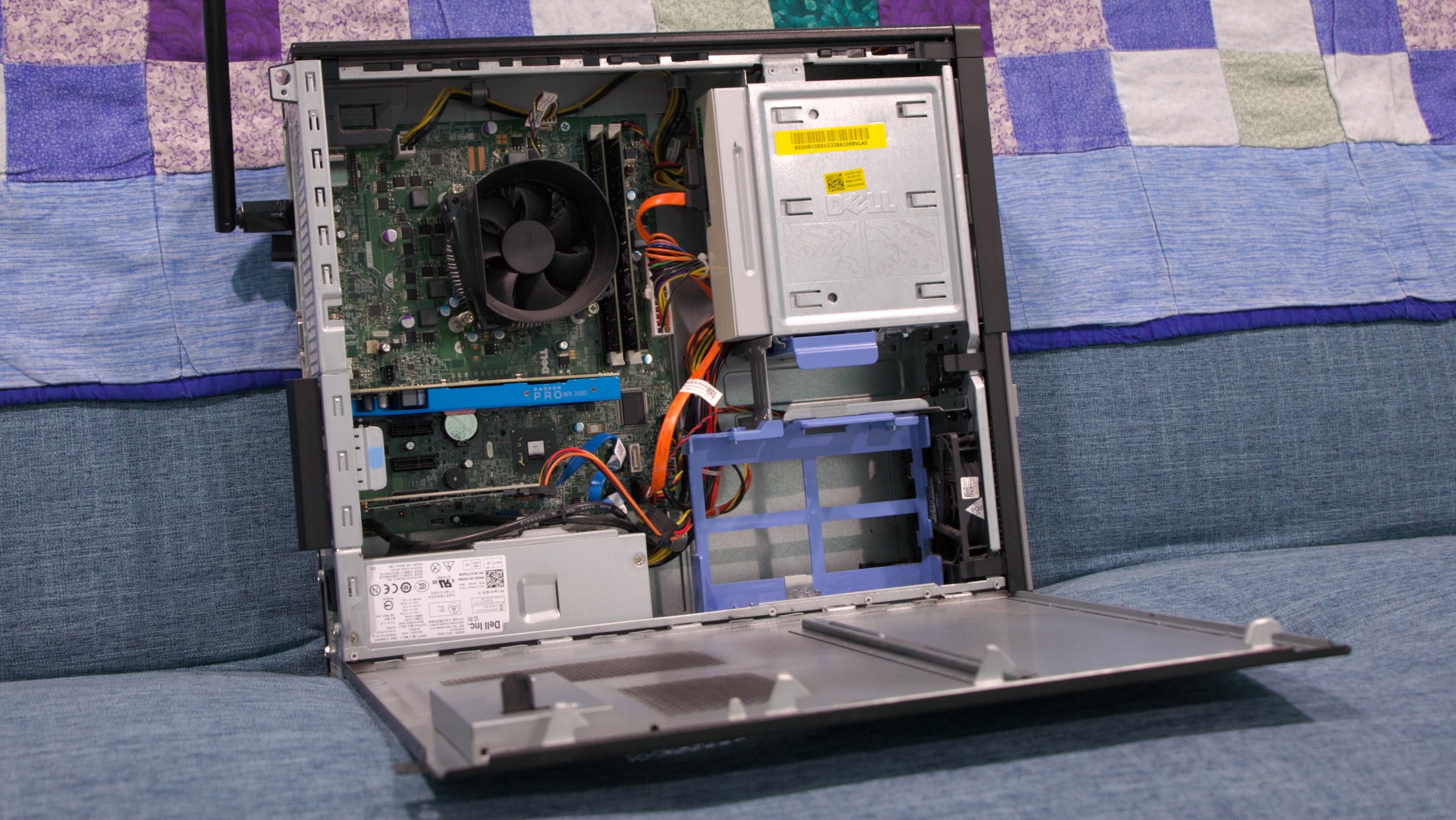
But I’ve been running the 24H2 update as my main work OS on two machines. The first is a Dell Optiplex 3010 desktop with a 3rd-generation Core i5-3xxx CPU, which had been my mother’s main desktop until I upgraded it a year or so ago. The second is a Lenovo ThinkPad X230 with a i5-3320M inside, a little brick of a machine that I picked up for next to nothing on Goodwill’s online auction site.

Credit: Andrew Cunningham

Both systems, and the desktop in particular, have been upgraded quite a bit; the laptop has 8GB of RAM while the desktop has 16GB, both are running SATA SSDs, and the desktop has a low-profile AMD Radeon Pro WX2100 in it, a cheap way to get support for running multiple 4K monitors. The desktop also has USB Wi-Fi and Bluetooth dongles and an internal expansion card that provides a pair of USB 3.0 Type-A ports and a single USB-C port. Systems of this vintage are pretty easy to refurbish since components are old enough that they’ve gone way down in price but not so old that they’ve become rare collectors’ items. It’s another way to get a usable computer for $100—or for free if you know where to look.

And these systems were meant to be maintained and upgraded. It’s one of the beautiful things about a standardized PC platform, though these days we’ve given a lot of that flexibility up in favor of smaller, thinner devices and larger batteries. It is possible to upgrade and refurbish these 12-year-old computers to the point that they run modern operating systems well because they were designed to leave room for that possibility.

But no matter how much you upgrade any of these PCs or how well you maintain them, they will never meet Windows 11’s official requirements. That’s the problem.

Using it feels pretty normal

Once it’s installed, Windows 11 is mostly Windows 11, whether your PC is officially supported or not. Credit: Andrew Cunningham

Depending on how you do it, it can be a minor pain to get Windows 11 up and running on a computer that doesn’t natively support it. But once the OS is installed, Microsoft’s early warnings about instability and the possible ending of updates have proven to be mostly unfounded.

A Windows 11 PC will still grab all of the same drivers from Windows Update as a Windows 10 PC would, and any post-Vista drivers have at least a chance of working in Windows 11 as long as they’re 64-bit. But Windows 10 was widely supported on hardware going back to the turn of the 2010s. If it shipped with Windows 8 or even Windows 7, your hardware should mostly work, give or take the occasional edge case. I’ve yet to have a catastrophic crash or software failure on any of the systems I’m using, and they’re all from the 2012–2016 era.

Once Windows 11 is installed, routine software updates and app updates from the Microsoft Store are downloaded and installed on my “unsupported” systems the same way they are on my “supported” ones. You don’t have to think about how you’re running an unsupported operating system; Windows remains Windows. That’s the big takeaway here—if you’re happy with the performance of your unsupported PC under Windows 10, nothing about the way Windows 11 runs will give you problems.

…Until you want to install a big update

There’s one exception for the PCs I’ve had running unsupported Windows 11 installs in the long term: They don’t want to automatically download and install the yearly feature updates for Windows. So a 22H2 install will keep downloading and installing updates for as long as they’re offered, but it won’t offer to update itself to versions 23H2 or 24H2.

This behavior may be targeted specifically at unsupported PCs, or it may just be a byproduct of how Microsoft rolls out these yearly updates (if you have a supported system with a known hardware or driver issue, for example, Microsoft will withhold these updates until the issues are resolved). Either way, it’s an irritating thing to have to deal with every year or every other year—Microsoft supports most of its annual updates for two years after they’re released to the public. So 23H2 and 24H2 are currently supported, while 22H2 and 21H2 (the first release of Windows 11) are at the end of the line.

This essentially means you’ll need to repeat the steps for doing a new unsupported Windows 11 install every time you want to upgrade. As we detail in our guide, that’s relatively simple if your PC has Secure Boot and a TPM but doesn’t have a supported processor. Make a simple registry tweak, download the Installation Assistant or an ISO file to run Setup from, and the Windows 11 installer will let you off with a warning and then proceed normally, leaving your files and apps in place.

Without Secure Boot or a TPM, though, installing these upgrades in place is more difficult. Trying to run an upgrade install from within Windows just means the system will yell at you about the things your PC is missing. Booting from a USB drive that has been doctored to overlook the requirements will help you do a clean install, but it will delete all your existing files and apps.

If you’re running into this problem and still want to try an upgrade install, there’s one more workaround you can try.

  1. Download an ISO for the version of Windows 11 you want to install, and then either make a USB install drive or simply mount the ISO file in Windows by double-clicking it.
  2. Open a Command Prompt window as Administrator and navigate to whatever drive letter the Windows install media is using. Usually that will be D: or E:, depending on what drives you have installed in your system; type the drive letter and colon into the command prompt window and press Enter.
  3. Type setup.exe /product server

You’ll notice that the subsequent setup screens all say they’re “installing Windows Server” rather than the regular version of Windows, but that’s not actually true—the Windows image that comes with these ISO files is still regular old Windows 11, and that’s what the installer is using to upgrade your system. It’s just running a Windows Server-branded version of the installer that apparently isn’t making the same stringent hardware checks that the normal Windows 11 installer is.

This workaround allowed me to do an in-place upgrade of Windows 11 24H2 onto a Windows 10 22H2 PC with no TPM enabled. It should also work for upgrading an older version of Windows 11 to 24H2.

Older PCs are still very useful!

This 2012-era desktop can be outfitted with 16 GB of memory and a GPU that can drive multiple 4K displays, things that wouldn’t have been common when it was manufactured. But no matter how much you upgrade it, Windows 11 will never officially support it. Credit: Andrew Cunningham

Having to go out of your way to keep Windows 11 up to date on an unsupported PC is a fairly major pain. But unless your hardware is exceptionally wretched (I wouldn’t recommend trying to get by with less than 4GB of RAM at an absolute bare minimum, or with a spinning hard drive, or with an aging low-end N-series Pentium or Celeron chip), you’ll find that decade-old laptops and desktops can still hold up pretty well when you’re sticking to light or medium-sized workloads.

I haven’t found this surprising. Major high-end CPU performance improvements have come in fits and starts over the last decade, and today’s (Windows 11-supported) barebones bargain basement Intel N100 PCs perform a lot like decade-old mainstream quad-core desktop processors.

With its RAM and GPU updates, my Optiplex 3010 and its Core i5 worked pretty well with my normal dual-4K desktop monitor setup (it couldn’t drive my Gigabyte M28U at higher than 60 Hz, but that’s a GPU limitation). Yes, I could feel the difference between an aging Core i5-3475S and the Core i7-12700 in my regular Windows desktop, and it didn’t take much at all for CPU usage to spike to 100 percent and stay there, always a sign that your CPU is holding you back. But once apps were loaded, they felt responsive, and I had absolutely no issues writing, recording and editing audio, and working in Affinity Photo on the odd image or two.

I wouldn’t recommend using this system to play games, nor would I recommend overpaying for a brand-new GPU to pair with an older quad-core CPU like this one (I chose the GPU I did specifically for its display outputs, not its gaming prowess). If you wanted to, you could still probably get respectable midrange gaming performance out of a 4th-, 6th-, or 7th-gen Intel Core i5 or i7 or a first-generation AMD Ryzen CPU paired with a GeForce RTX 4060 or 3060, or a Radeon RX 7600. Resist the urge to overspend, consider used cards as a way to keep costs down, and check your power supply before you install anything—the years-old 300 W power supply in a cheap Dell office desktop will need to be replaced before you can use it with any GPU that has an external power connector.

My experience with the old Goodwill-sourced ThinkPad was also mostly pretty good. It had both Secure Boot and a TPM, making installation and upgrades easier. The old fingerprint sensor (a slow and finicky swipe-to-scan sensor) and its 2013-era driver even support Windows Hello. I certainly minded the cramped, low-resolution screen—display quality and screen-to-bezel ratio being the most noticeable changes between a 12-year-old system and a modern one—but it worked reliably with a new battery in it. It even helped me focus a bit at work; a 1366×768 screen just doesn’t invite heavy multitasking.

But the mid-2010s are a dividing line, and new laptops are better than old laptops

That brings me to my biggest word of warning.

If you want to run Windows 11 on an older desktop, one where the computer is just a box that you plug stuff into, the age of the hardware isn’t all that much of a concern. Upgrading components is easier whether you’re talking about a filthy keyboard, a failing monitor, or a stick of RAM. And you don’t need to be concerned as much with power use or battery life.

But for laptops? Let me tell you, there are things about using a laptop from 2012 that you don’t want to remember.

Three important dividing lines: In 2013, Intel’s 4th-generation Haswell processors gave huge battery life boosts to laptops thanks to lower power use when idle and the ability to switch more quickly between active and idle states. In 2015, Dell introduced the first with a slim-bezeled design (though it would be some years before it would fix the bottom-mounted up-your-nose webcam), which is probably the single most influential laptop design change since the MacBook Air. And around the same time (though it’s hard to pinpoint an exact date), more laptops began adopting Microsoft’s Precision Touchpad specification rather than using finicky, inconsistent third-party drivers, making PC laptop touchpads considerably less annoying than they had been up until that point.

And those aren’t the only niceties that have become standard or near-standard on midrange and high-end laptops these days. We also have high-resolution, high-density displays; the adoption of taller screen aspect ratios like 16: 10 and 3:2, giving us more vertical screen space to use; USB-C charging, replacing the need for proprietary power bricks; and backlit keyboards!

The ThinkPad X230 I bought doesn’t have a backlit keyboard, but it does have a bizarre little booklight next to the webcam that shines down onto the keyboard to illuminate it. This is sort of neat if you’re already the kind of person inclined to describe janky old laptops as “neat,” but it’s not as practical.

Even if you set aside degraded, swollen, or otherwise broken batteries and the extra wear and tear that comes with portability, a laptop from the last three or four years will have a ton of useful upgrades and amenities aside from extra speed. That’s not to say that older laptops can’t be useful because they obviously can be. But it’s also a place where an upgrade can make a bigger difference than just getting you Windows 11 support.

Some security concerns

Some old PCs will never meet Windows 11’s more stringent security requirements, and PC makers often stop updating their systems long before Microsoft drops support. Credit: Andrew Cunningham

Windows 11’s system requirements were controversial in part because they were focused mostly on previously obscure security features like TPM 2.0 modules, hypervisor-protected code integrity (HVCI), and mode-based execution control (MBEC). A TPM module makes it possible to seamlessly encrypt your PC’s local storage, among other things, while HVCI helps to isolate data in memory from the rest of the operating system to make it harder for malicious software to steal things (MBEC is just a CPU technology that speeds up HVCI, which can come with a hefty performance penalty on older systems).

Aside from those specific security features, there are other concerns when using old PCs, some of the same ones we’ve discussed in macOS as Apple has wound down support for Intel Macs. Microsoft’s patches can protect against software security vulnerabilities in Windows, and they can provide some partial mitigations for firmware-based vulnerabilities since even fully patched and fully supported systems won’t always have all the latest BIOS fixes installed.

But software can’t patch everything, and even the best-supported laptops with 5th- or 6th-generation Core CPUs in them will be a year or two past the days when they could expect new BIOS updates or driver fixes.

The PC companies and motherboard makers make some of these determinations; cheap consumer laptops tend to get less firmware and software support regardless of whether Intel or AMD are fixing problems on their ends. But Intel (for example) stops supporting its CPUs altogether after seven or eight years (support ended for 7th-generation CPUs in March). For any vulnerabilities discovered after that, you’re on your own, or you have to trust in software-based mitigations.

I don’t want to overplay the severity or the riskiness of these kinds of security vulnerabilities. Lots of firmware-level security bugs are the kinds of things that are exploited by sophisticated hackers targeting corporate or government systems—not necessarily everyday people who are just using an old laptop to check their email or do their banking. If you’re using good everyday security hygiene otherwise—using strong passwords or passkeys, two-factor authentication, and disk encryption (all things you should already be doing in Windows 10)—an old PC will still be reasonably safe and secure.

A viable, if imperfect, option for keeping an old PC alive

If you have a Windows 10 PC that is still working well or that you can easily upgrade to give it a new lease on life, and you don’t want to pay whatever Microsoft is planning to charge for continued Windows 10 update support, installing Windows 11 may be the path of least resistance for you despite the installation and update hurdles.

Especially for PCs that only miss the Windows 11 support cutoff by a year or two, you’ll get an operating system that still runs reasonably well on your PC, should still support all of your hardware, and will continue to run the software you’re comfortable with. Yes, the installation process for Windows’ annual feature updates is more annoying than it should be. But if you’re just trying to squeeze a handful of years out of an older PC, it might not be an issue you have to deal with very often. And though Windows 11 is different from Windows 10, it doesn’t come with the same learning curve that switching to an alternate operating system like ChromeOS Flex or Linux would.

Eventually, these PCs will age out of circulation, and the point will be moot. But even three years into Windows 11’s life cycle, I can’t help but feel that the system requirements could stand to be relaxed a bit. That ship sailed a long time ago, but given how many PCs are still running Windows 10 less than a year from the end of guaranteed security updates, expanding compatibility is a move Microsoft could consider to close the adoption gap and bring more PCs along.

Even if that doesn’t happen, try running Windows 11 on an older but still functional PC sometime. Once you clean it up a bit to rein in some of modern Microsoft’s worst design impulses, I think you’ll be pleasantly surprised.

Photo of Andrew Cunningham

Andrew is a Senior Technology Reporter at Ars Technica, with a focus on consumer tech including computer hardware and in-depth reviews of operating systems like Windows and macOS. Andrew lives in Philadelphia and co-hosts a weekly book podcast called Overdue.

What I learned from 3 years of running Windows 11 on “unsupported” PCs Read More »

win+c,-windows’-most-cursed-keyboard-shortcut,-is-getting-retired-again

Win+C, Windows’ most cursed keyboard shortcut, is getting retired again

What job will Win+C lose next? —

Win+C has been assigned to some of Windows’ least successful features.

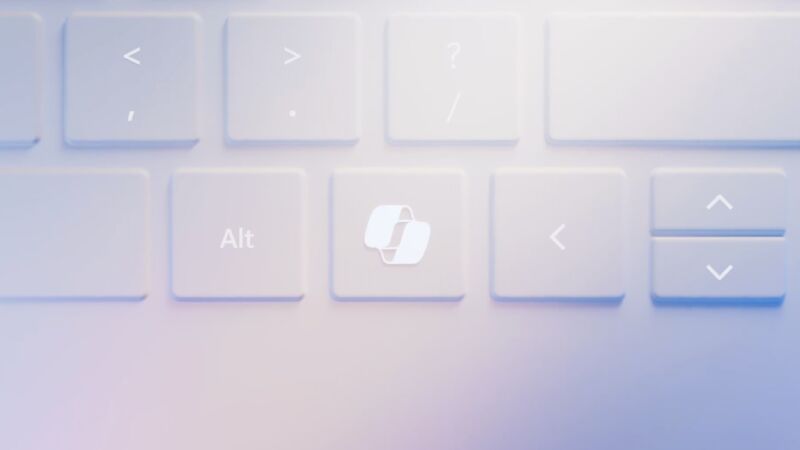
A rendering of the Copilot button.

Enlarge / A rendering of the Copilot button.

Microsoft

Microsoft is all-in on its Copilot+ PC push right now, but the fact is that they’ll be an extremely small minority among the PC install base for the foreseeable future. The program’s stringent hardware requirements—16GB of RAM, at least 256GB of storage, and a fast neural processing unit (NPU)—disqualify all but new PCs, keeping features like Recall from running on all current Windows 11 PCs.

But the Copilot chatbot remains supported on all Windows 11 PCs (and most Windows 10 PCs), and a change Microsoft has made to recent Windows 11 Insider Preview builds is actually making the feature less useful and accessible than it is in the current publicly available versions of Windows. Copilot is being changed from a persistent sidebar into an app window that can be resized, minimized, and pinned and unpinned from the taskbar, just like any other app. But at least as of this writing, this version of Copilot can no longer adjust Windows’ settings, and it’s no longer possible to call it up with the Windows+C keyboard shortcut. Only newer keyboards with the dedicated Copilot key will have an easy built-in keyboard shortcut for summoning Copilot.

If Microsoft keeps these changes intact, they’ll hit Windows 11 PCs when the 24H2 update is released to the general public later this year; the changes are already present on Copilot+ PCs, which are running a version of Window 11 24H2 out of the box.

Changing how Copilot works is all well and good—despite how quickly Microsoft has pushed it out to every Windows PC in existence, it has been labeled a “preview” up until the 24H2 update, and some amount of change is to be expected. But discontinuing the just-introduced Win+C keyboard shortcut to launch Copilot feels pointless, especially since the Win+C shortcut isn’t being reassigned.

The Copilot assistant exists on the taskbar, so it’s not as though it’s difficult to access, but the feature is apparently important enough to merit the first major change to Windows keyboards in three decades. Surely it also justifies retaining a keyboard shortcut for the vast majority of PC keyboards without a dedicated Copilot key.

People who want to continue to use Win+C as a launch key for Copilot can do so with custom keyboard remappers like Microsoft’s own Keyboard Manager PowerToy. Simply set Win+C as a shortcut for the obscure Win+Shift+F23 shortcut that the hardware Copilot key is already mapped to and you’ll be back in business.

Win+C has a complicated history

Win+C always seems to get associated with transient, unsuccessful Windows features like Charms and Cortana.

Enlarge / Win+C always seems to get associated with transient, unsuccessful Windows features like Charms and Cortana.

Andrew Cunningham

The Win+C keyboard shortcut actually has a bit of a checkered history, having been reassigned over the years to multiple less-than-successful Windows initiatives. In Windows 8, it made its debut as a shortcut for the “Charms” menu, part of the operating system’s tablet-oriented user interface that was designed to partially replace the old Start menu. But Windows 10 retreated from this new tablet UI, and the Charms bar was discontinued.

In Windows 10, Win+C was assigned to the Cortana voice assistant instead, Microsoft’s contribution to the early-2010s voice assistant boom kicked off by Apple’s Siri and refined by competitors like Amazon’s Alexa. But Cortana, like the Charms bar, never really took off, and Microsoft switched the voice assistant off in 2023 after a few years of steadily deprioritizing it in Windows 10 (and mostly hiding it in Windows 11).

Most older versions of Windows didn’t do anything with the Win+C, but if you go all the way back to the Windows 95 era, users of Microsoft Natural Keyboards who installed Microsoft’s IntelliType software could use Win+C to open the Control Panel. This shortcut apparently never made it into Windows itself, even as the Windows key became standard equipment on PCs in the late ’90s and early 2000s.

So pour one out for Win+C, the keyboard shortcut that is always trying to do something new and not quite catching on. We can’t wait to see what it does next.

Win+C, Windows’ most cursed keyboard shortcut, is getting retired again Read More »

microsoft-to-test-“new-features-and-more”-for-aging,-stubbornly-popular-windows-10

Microsoft to test “new features and more” for aging, stubbornly popular Windows 10

but the clock is still ticking —

Support ends next year, but Windows 10 remains the most-used version of the OS.

Microsoft to test “new features and more” for aging, stubbornly popular Windows 10

Microsoft

In October 2025, Microsoft will stop supporting Windows 10 for most PC users, which means no more technical support and (crucially) no more security updates unless you decide to pay for them. To encourage adoption, the vast majority of new Windows development is happening in Windows 11, which will get one of its biggest updates since release sometime this fall.

But Windows 10 is casting a long shadow. It remains the most-used version of Windows by all publicly available metrics, including Statcounter (where Windows 11’s growth has been largely stagnant all year) and the Steam Hardware Survey. And last November, Microsoft decided to release a fairly major batch of Windows 10 updates that introduced the Copilot chatbot and other changes to the aging operating system.

That may not be the end of the road. Microsoft has announced that it is reopening a Windows Insider Beta Channel for PCs still running Windows 10, which will be used to test “new features and more improvements to Windows 10 as needed.” Users can opt into the Windows 10 Beta Channel regardless of whether their PC meets the requirements for Windows 11; if your PC is compatible, signing up for the less-stable Dev or Canary channels will still upgrade your PC to Windows 11.

Any new Windows 10 features that are released will be added to Windows 10 22H2, the operating system’s last major yearly update. Per usual for Windows Insider builds, Microsoft may choose not to release all new features that it tests, and new features will be released for the public version of Windows 10 “when they’re ready.”

One thing this new beta program doesn’t change is the end-of-support date for Windows 10, which Microsoft says is still October 14, 2025. Microsoft says that joining the beta program doesn’t extend support. The only way to continue getting Windows 10 security updates past 2025 is to pay for the Extended Security Updates (ESU) program; Microsoft plans to offer these updates to individual users but still hasn’t announced pricing for individuals. Businesses will pay as much as $61 per PC for the first year of updates, while schools will pay as little as $1 per PC.

Beta program or no, we still wouldn’t expect Windows 10 to change dramatically between now and its end-of-support date. We’d guess that most changes will relate to the Copilot assistant, given how aggressively Microsoft has moved to add generative AI to all of its products. For example, the Windows 11 version of Copilot is shedding its “preview” tag and becoming an app that runs in a regular window rather than a persistent sidebar, changes Microsoft could also choose to implement in Windows 10.

Microsoft to test “new features and more” for aging, stubbornly popular Windows 10 Read More »